| Prepare Rocky Linux 8 for SMS Server Installation |
| 1. |
Minimum Resources Required |
|
| - |
Intel i5 2.5Ghz CPU (2 vCPU or more) |
| - |
2GB RAM |
| - |
100GB free space (for 50 active users) |
| - |
3Mb/s internet connection (fixed or dynamic IP address) |
|
| |
| 2. |
Preparation Steps |
|
Boot up the system with Rocky Linux 8 installation media, select option "Install Rocky Linux 8" and press enter. |
|
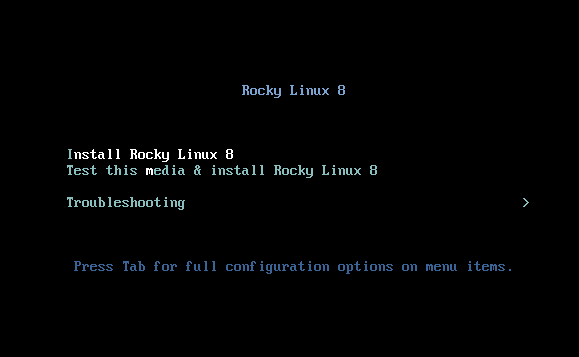
Figure 1
|
|
| |
|
After select your desired language, setup page "INSTALLATION SUMMARY" will be displayed. You should configure your
server here by selecting system time zone, input network connection parameters, define hard disk partitions, input
root password, create a new super user, etc.
|
|
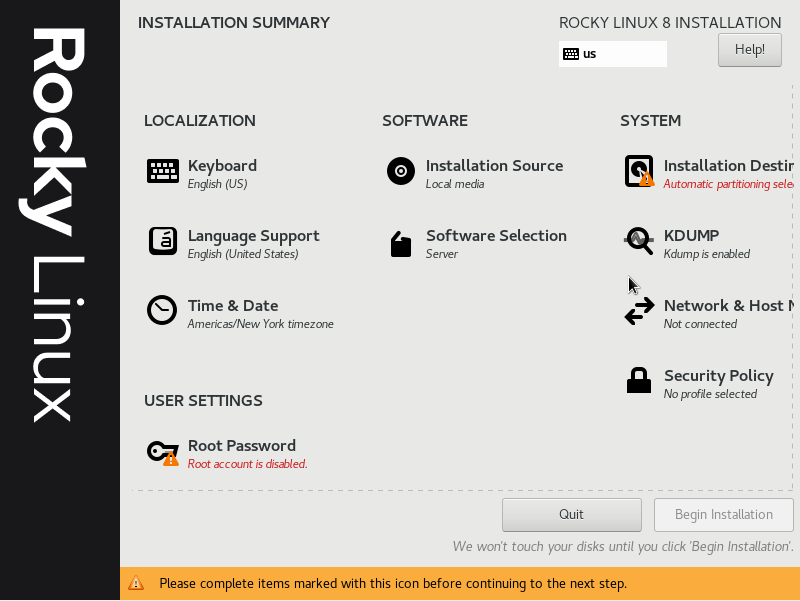
Figure 2
|
|
| |
|
Configure network settings, select "NETWORK & HOST NAME". Then click "Configure..." button, and then
select "IPv4 Settings" and click "Add" button. Input network settings of your server, and turn on the network
connection after save your network settings.
| Notes: |
| 1. |
Ususally, your server is behind a router or firewall appliance, so input the local IP address of your server on the field "Address".
You may need to consult your system administrator to get those data.
|
| 2. |
You must input at least one DNS server on the field "DNS servers". If you have two or more DNS servers, separate them with comma. |
|
|
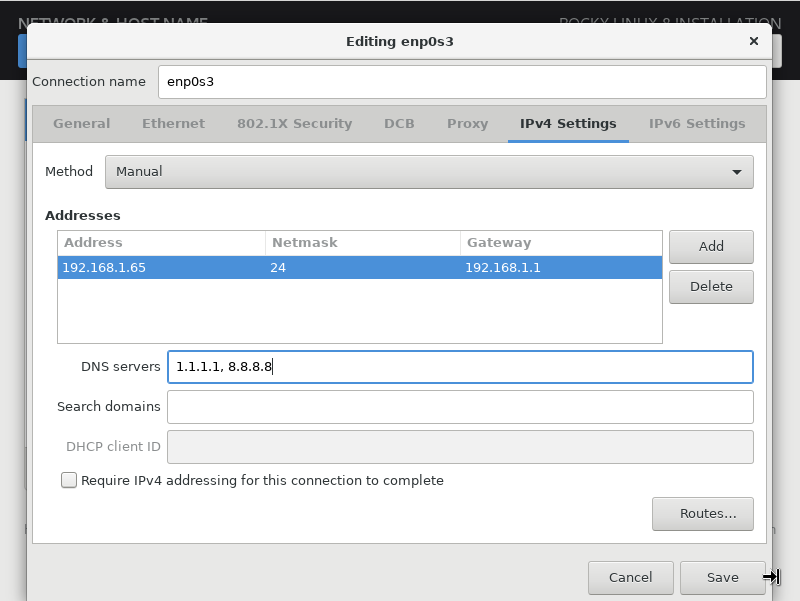
Figure 3
|
|
| |
|
Configure your server's time zone, and turn on network time auto-adjustment. Note: SMS is a
single time zone application, and time zone is very important for it's operation. For example,
if you want to provide SMS service for users in Hong Kong, you must set your server to Hong Kong
time zone, even it is not located in Hong Kong physically.
|
|
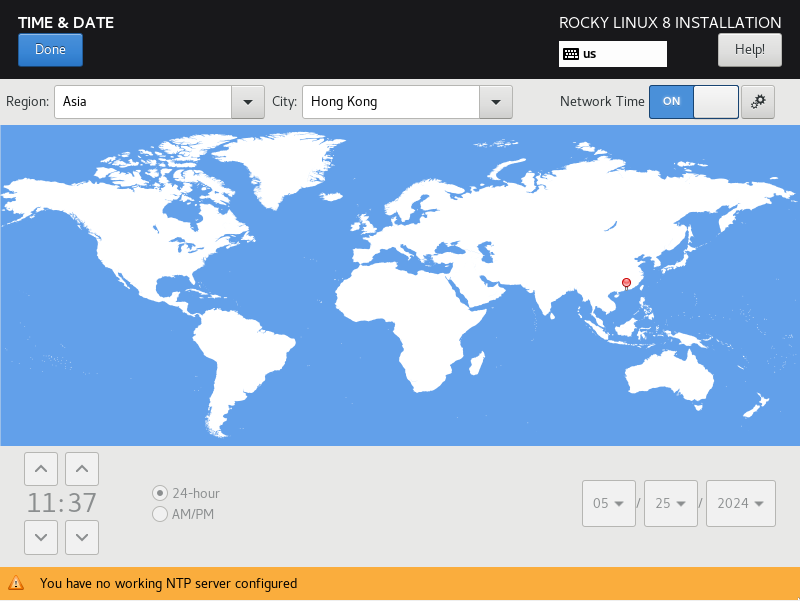
Figure 4
|
|
| |
|
Select the installation destination and configure your partitions manually by selecting option "Custom" on
section "Storage Configuration" as Figure 5 shown, then follow the way on Figure 6, Figure 7 and Figure 8 to
create storage partitions. Although you may let Rocky Linux 8 configure disk partitions for you automatically,
it will assign half disk space to "home" partition, which SMS will not use it. i.e. About half of disk space
is wasted.
|
|
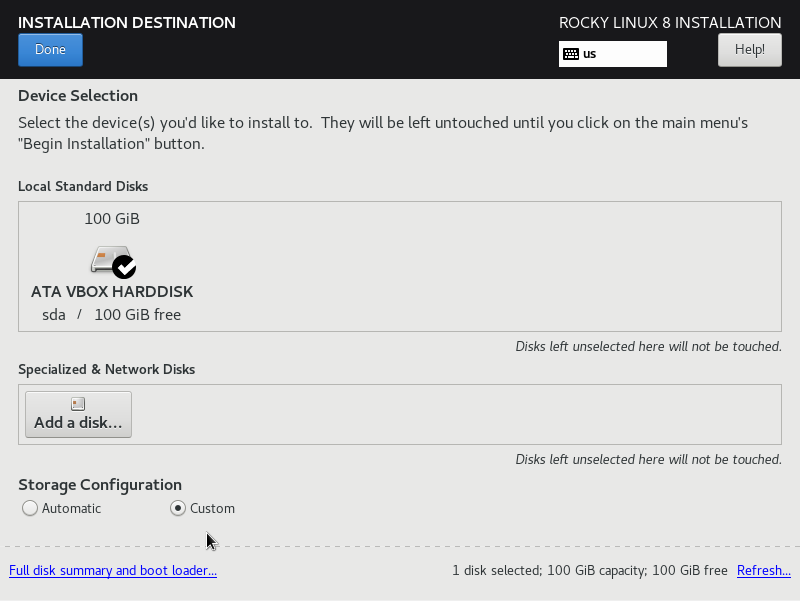
Figure 5
|
|
| |
|
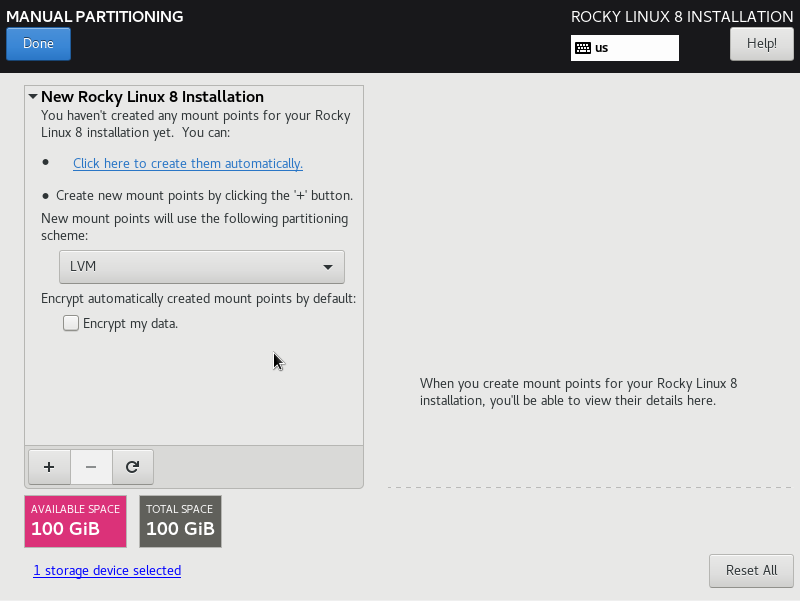
Figure 6
|
|
| |
|
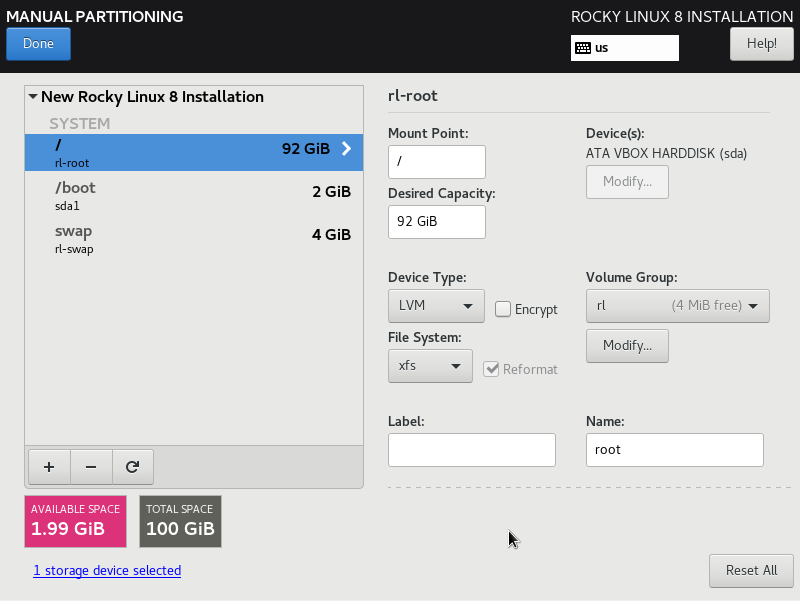
Figure 7
|
|
| |
|
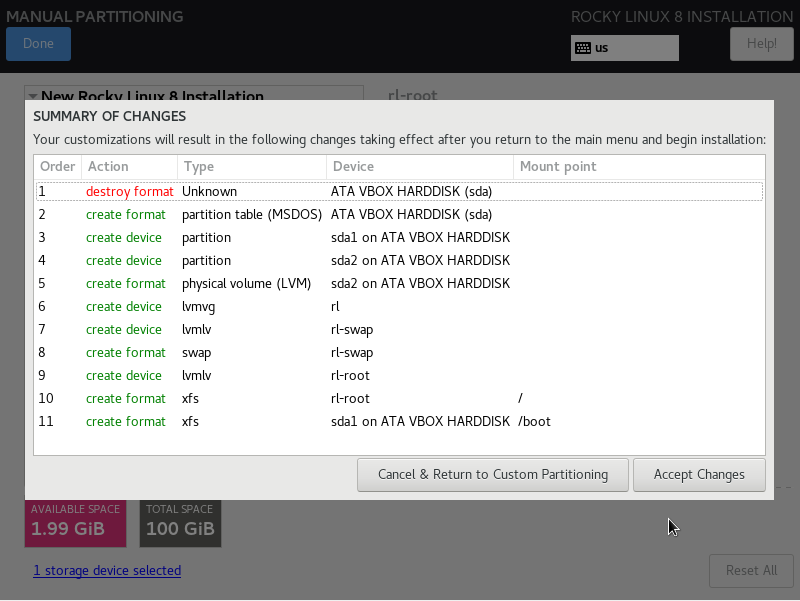
Figure 8
|
|
| |
|
Select "Root Password" to input your desired password for root as Figure 9 shown. After you assign password to root, a new
option "User Creation" will appear on the "INSTALLATION SUMMARY" window like Figure 10. Click on this newly shown option to
create a new user as Figure 11 shown.
|
|
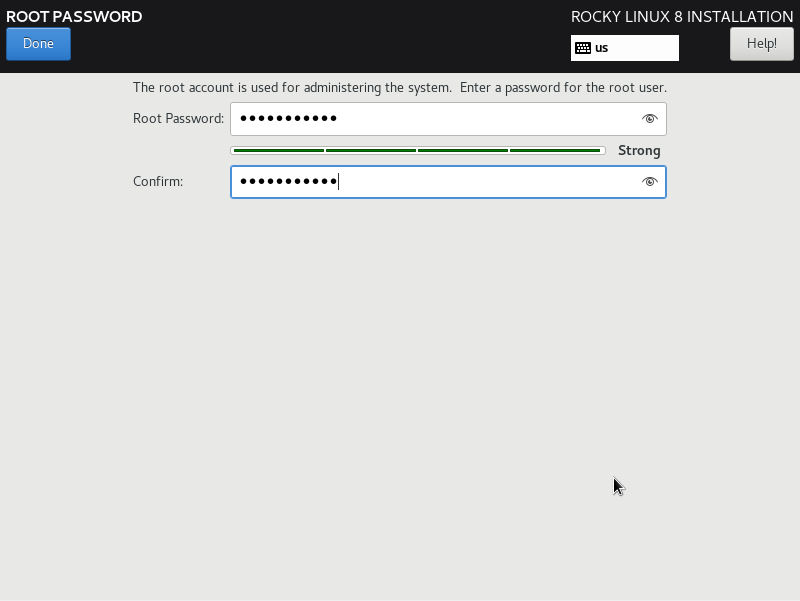
Figure 9
|
|
| |
|
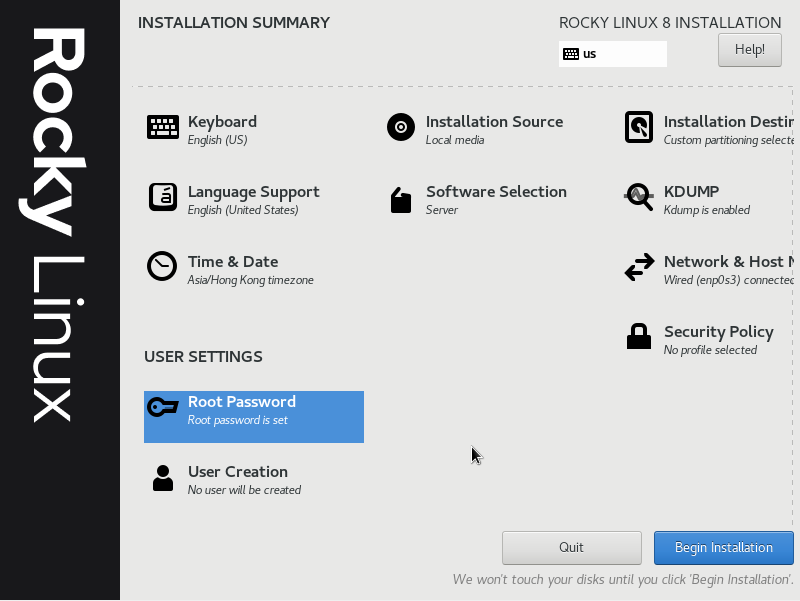
Figure 10
|
|
| |
|
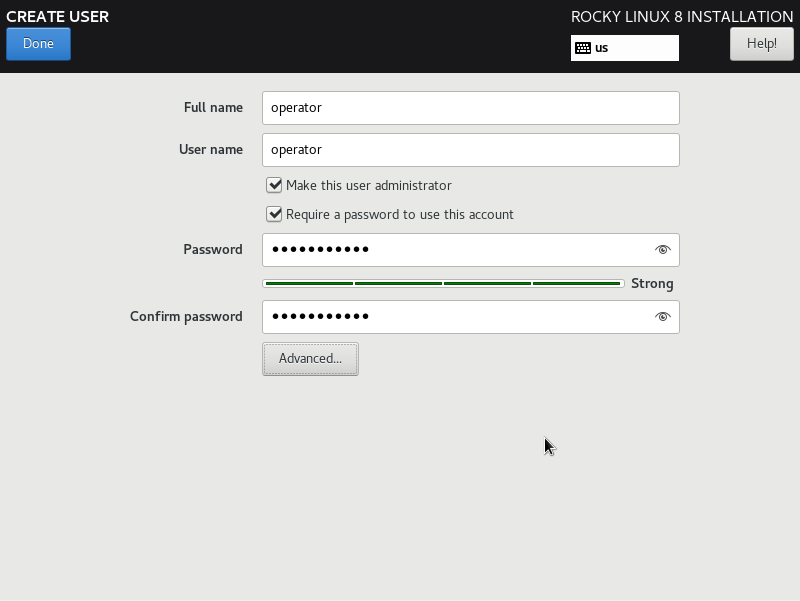
Figure 11
|
|
| |
|
Now, button "Begin Installation" on Figure 2 should be activated and you could click on it to install Rocky Linux 8.
|
| |
|
After Rocky Linux 8 installation is completed, you should reboot the system, and then two things must be done immediately to
harden the system security: (1) disable root login via ssh, (2) patch the system to the most updated level.
For (1), modify the ssh configuration file "/etc/ssh/sshd_config", and uncomment the line "PermitRootLogin yes"
and change it to "PermitRootLogin no". Then, save the change and restart the sshd service:
systemctl restart sshd.service
For (2), issue the below command on a terminal:
dnf update
Now, the system is well prepared for SMS installation. Reboot the system again to ensure all most updated patches loaded.
|
| |