 |
 |
 |
Remark:
Due to technical issues, Firefox and hence Tor browser are not supported by SMS 2.x.
DuckDuckGo Web Browser
Now, let's show you how to remove all traceable data on DuckDuckGo web browser.
Launch DuckDuckGo web browser, you can find a fire image button on upper or lower menu bar like figure 5.2.1 shown. It's position is varied on different platforms. Just click on this fire button, you will be asked whether you want to "close tabs and clear data". If you click on the "close tabs and clear data" button to confirm your decision, an animation show of fire (figure 5.2.2) will be displayed and all your browsing data will be deleted.
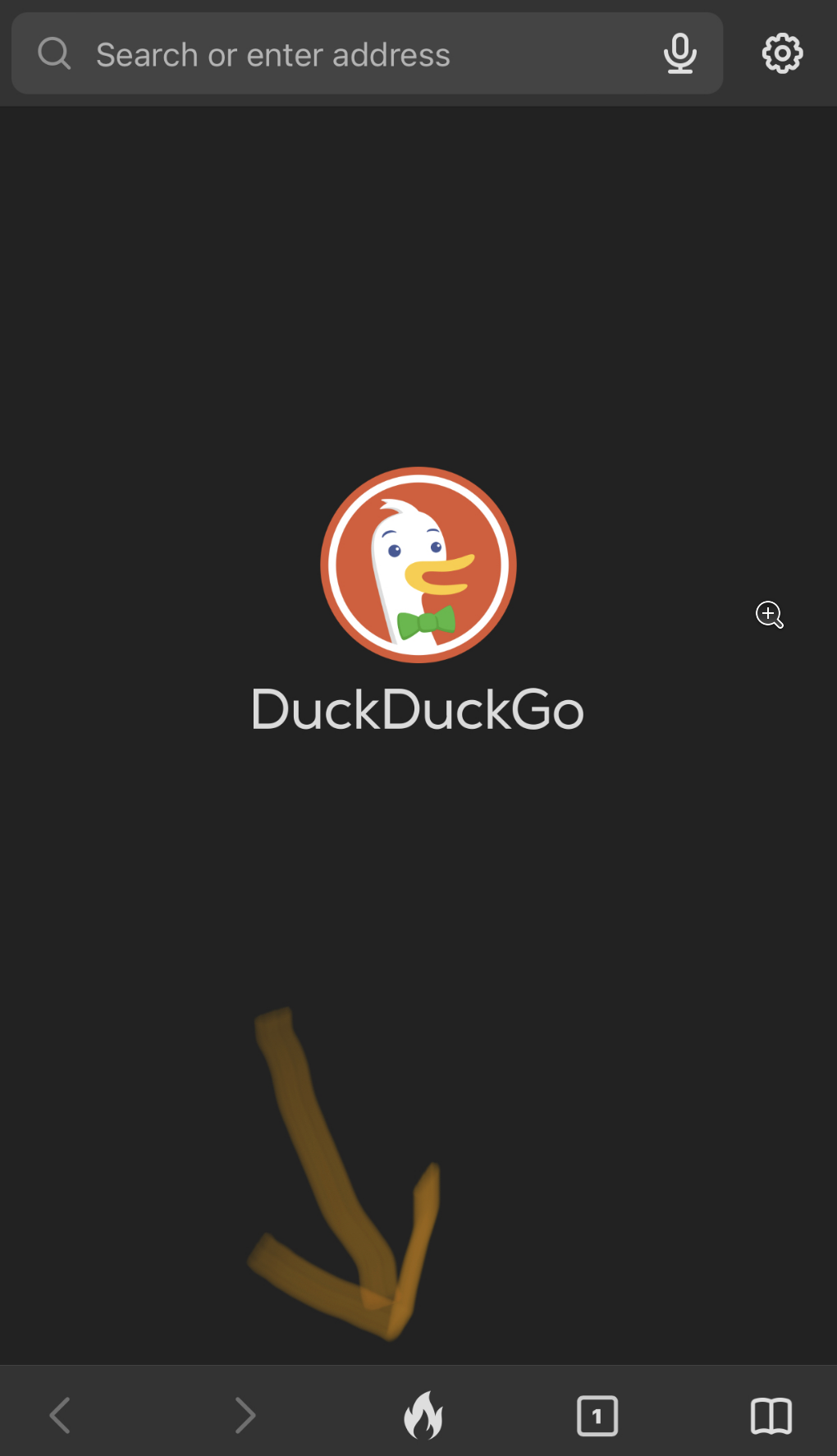
Figure 5.2.1

Figure 5.2.2
Supported platforms of DuckDuckGo web browser are Android, iOS, Microsoft Windows and macOS, Linux is not included.
Desktop version Brave web browser can be used to connect Tor network. i.e. Only Brave browser on Linux, MS Windows and macOS have this feature. The feature is called "New private window with Tor". You may click on the right top corner's menu to select it (Figure 5.2.3), or you may press keys Alt+Shift+N together to activate this feature. On macOS, the key combination is option+command+N. Note: If you use Linux or MS Windows virtual machine on Apple Mac computers, the key combination is option+shift+N.
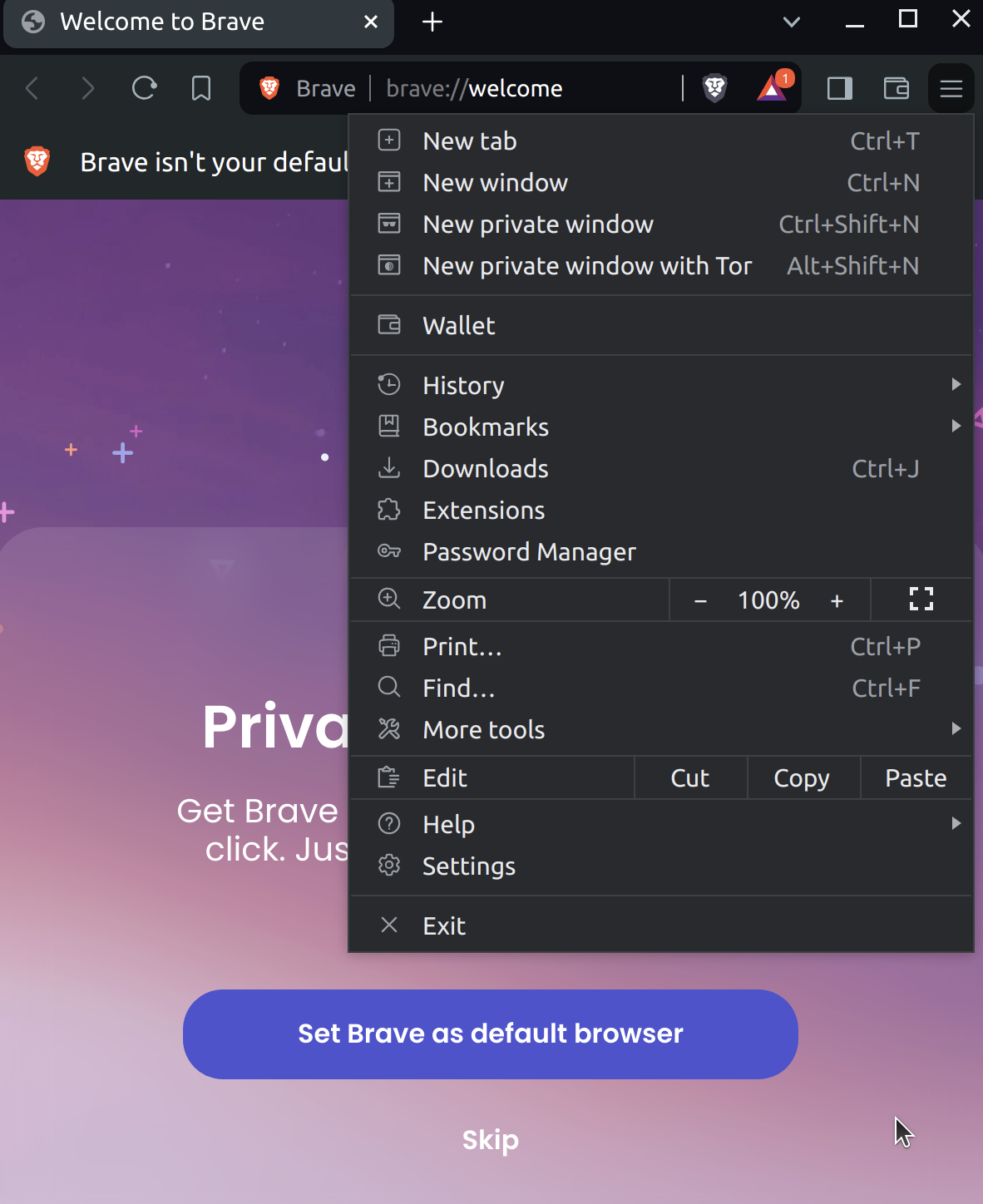
Figure 5.2.3
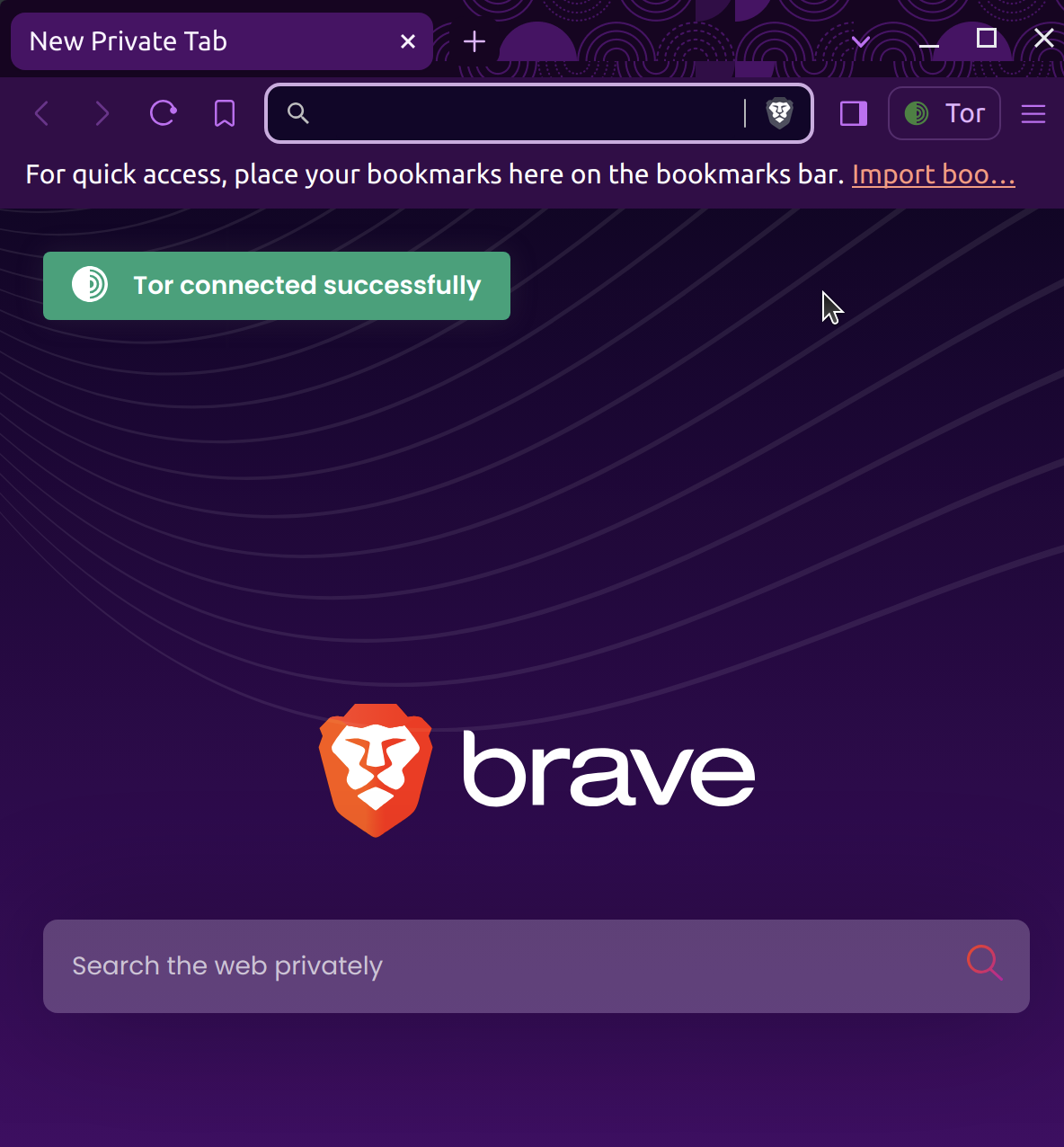
Figure 5.2.4
Settings > Privacy and security > Clear browsing data > Select page "On exit" and check all available checkbox items except "Site and shields settings" like Figure 5.2.5 shown.
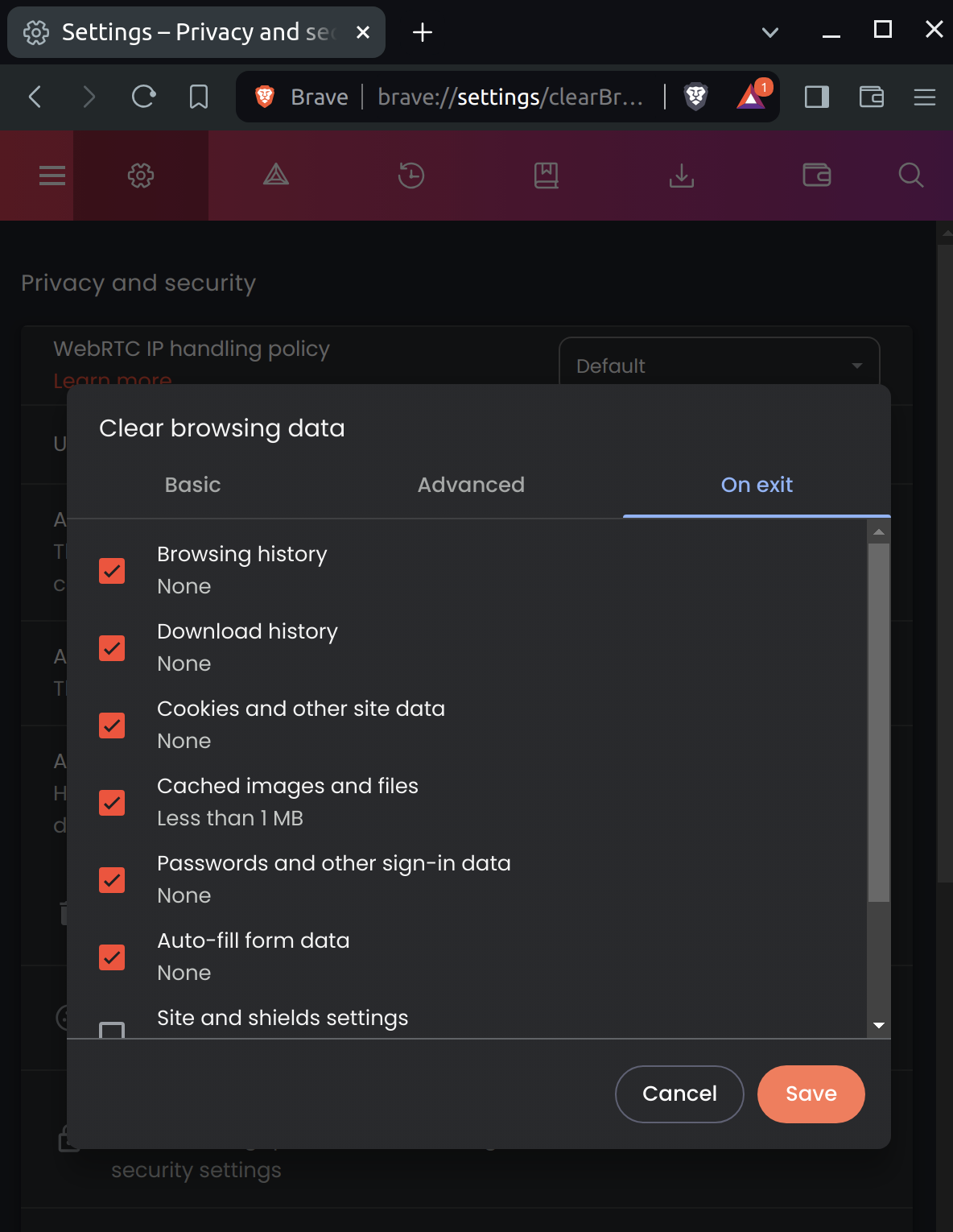
Figure 5.2.5
Update:
The "exit" option can be found on Brave browser for Android now, but still missing on iOS.
|
|
|