|
|
|
| 4.6.2 Email senders |
Email senders (Email workers) are used to send messaging site accessing email and notifications to users.
To maintain email senders, select item 'System Settings' on main menu (figure 2.1.2), then click on the button 'Email Senders' (figure 4.6.1.1), screen
like figure 4.6.2.1 will be displayed to show you existing email sender list.
|
| |
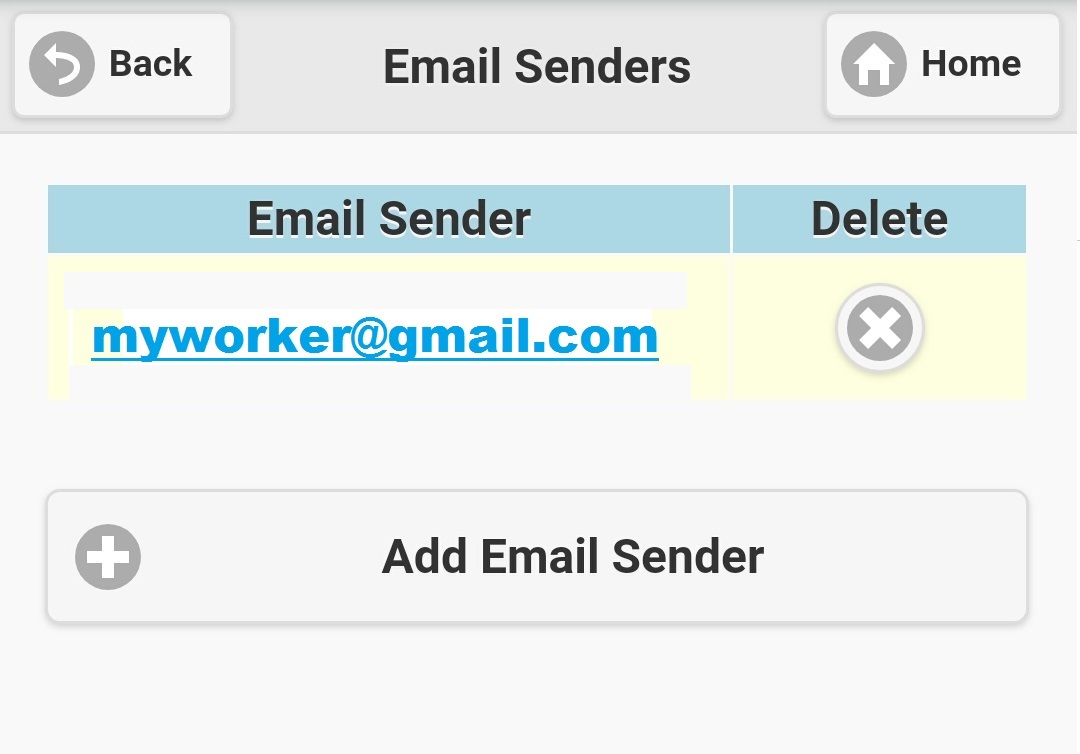
Figure 4.6.2.1 |
| |
|
If you want to add a new email sender, click the button 'Add Email Sender' on figure 4.6.2.1, screen like figure 4.6.2.2 will be seen. You could input
email address, login username, login password, email SMTP server, and SMTP server port number in it. Let's use Gmail as an example, it's SMTP server and
port number are 'smtp.gmail.com' and 587 respectively. Click on 'Save' button to add a new email sender, then it will be switched back to the email sender
list, and your newly added email sender will be shown on the list.
|
| |
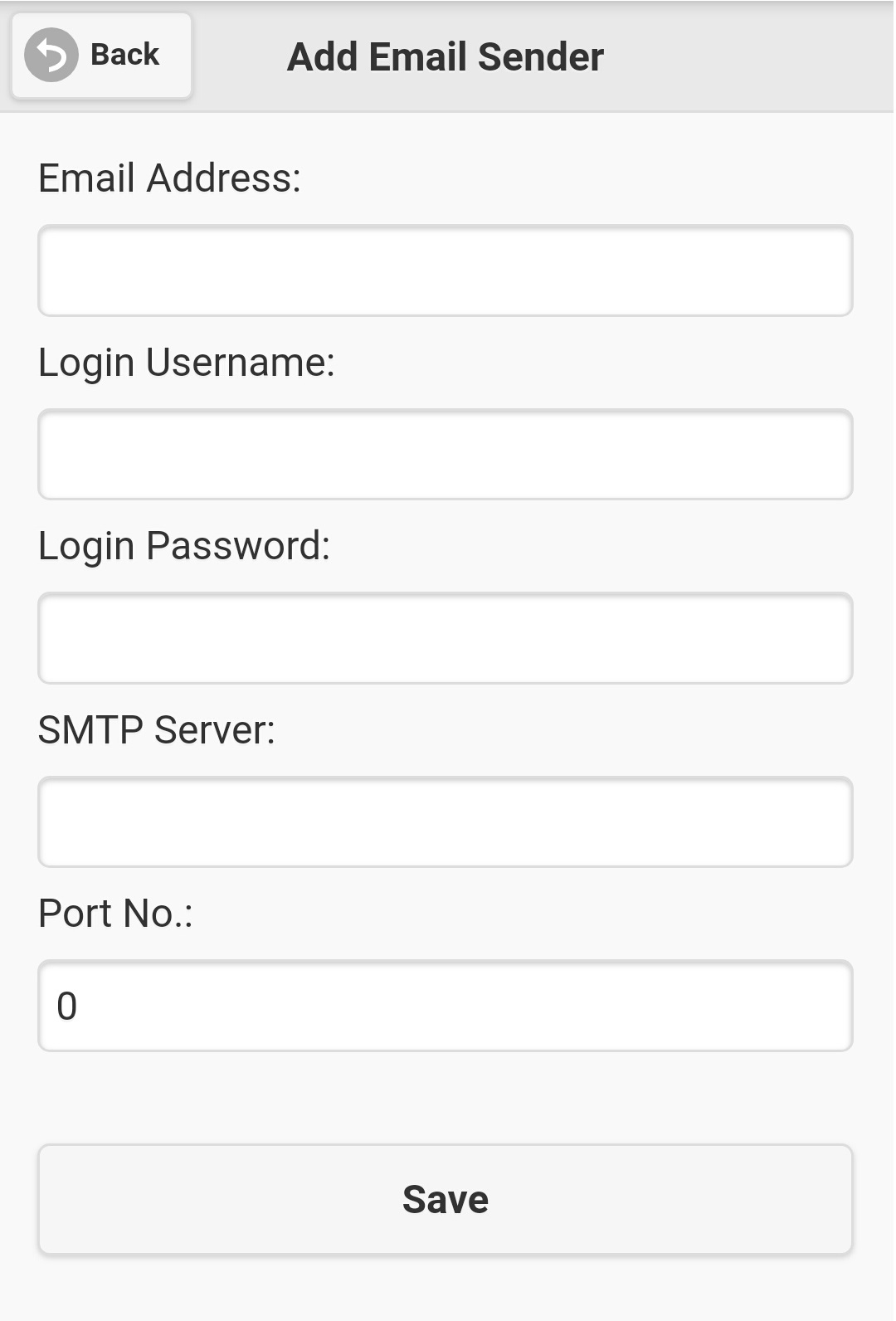
Figure 4.6.2.2 |
| |
To modify an email sender, click on the email address on the list, then screen like figure 4.6.2.3 will be displayed. Details of selected email sender
will be shown, just modify it's data, and clicking the 'Save' button will update the selected email sender.
To delete an email sender, click cross icon on the 'Delete' column of selected email sender in the list (figure 4.6.2.1), a dialog box will show up for
you to confirm the email sender deletion. Clicking on 'OK' button will remove the selected email sender.
|
| |
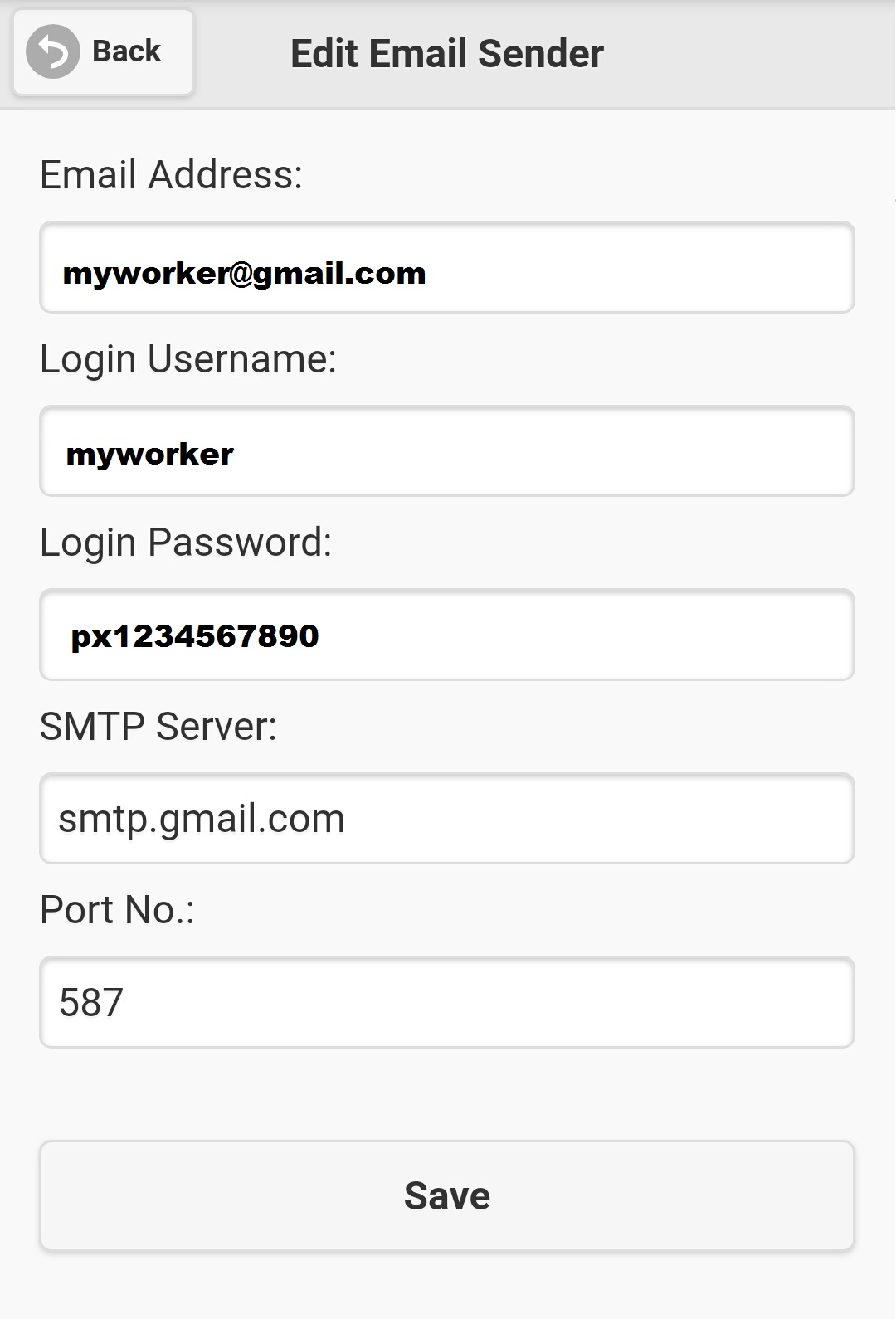
Figure 4.6.2.3 |
|
|
|