 |
 |
 |
Image files handling is very simple, all images files will be displayed on SMS with a much lower resolution version, click on the images will bring up the full resolution image file. Recognised audio and video files will be put on HTML5 multimedia object, which can play audio or video files on web page directly. 'aud_convertable' file type means an uploaded audio file can be converted to OGG audio file, so that audio file converter FFmpeg will handle it automatically for you (provided that you have installed this optional software). Please note that no platform can handle all audio and/or video files flawlessly. For example, iPhone and iPad are the worst platforms to handle web based multimedia files, many commonly used multimedia file types can't be handled properly on iOS web browsers.
To maintain file types, select item 'System Settings' on main menu (figure 2.1.2), then click on the button 'File Types' (figure 4.6.1.1), screen like figure 4.6.4.1 will be displayed to show you existing file type list.
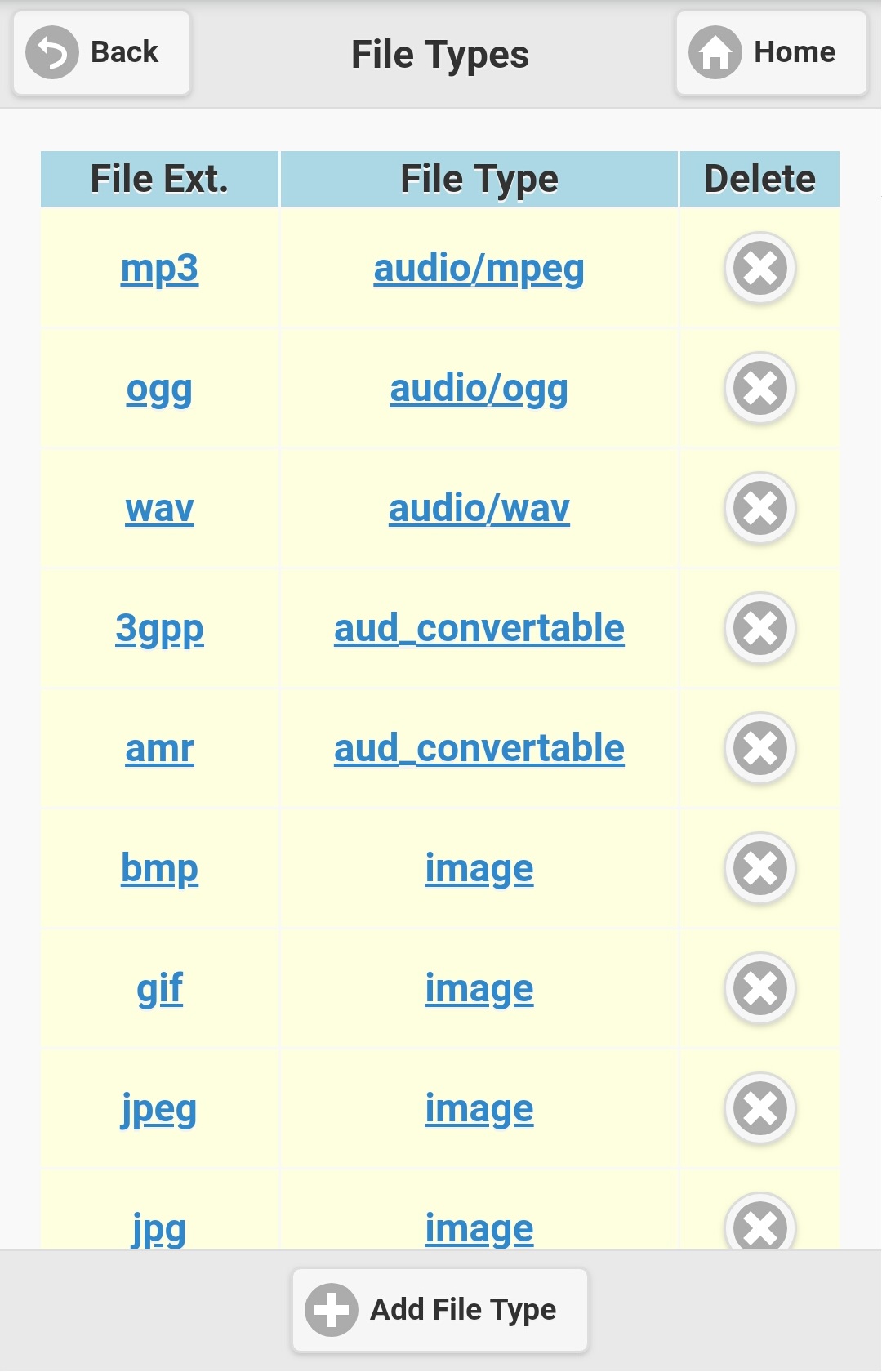
Figure 4.6.4.1
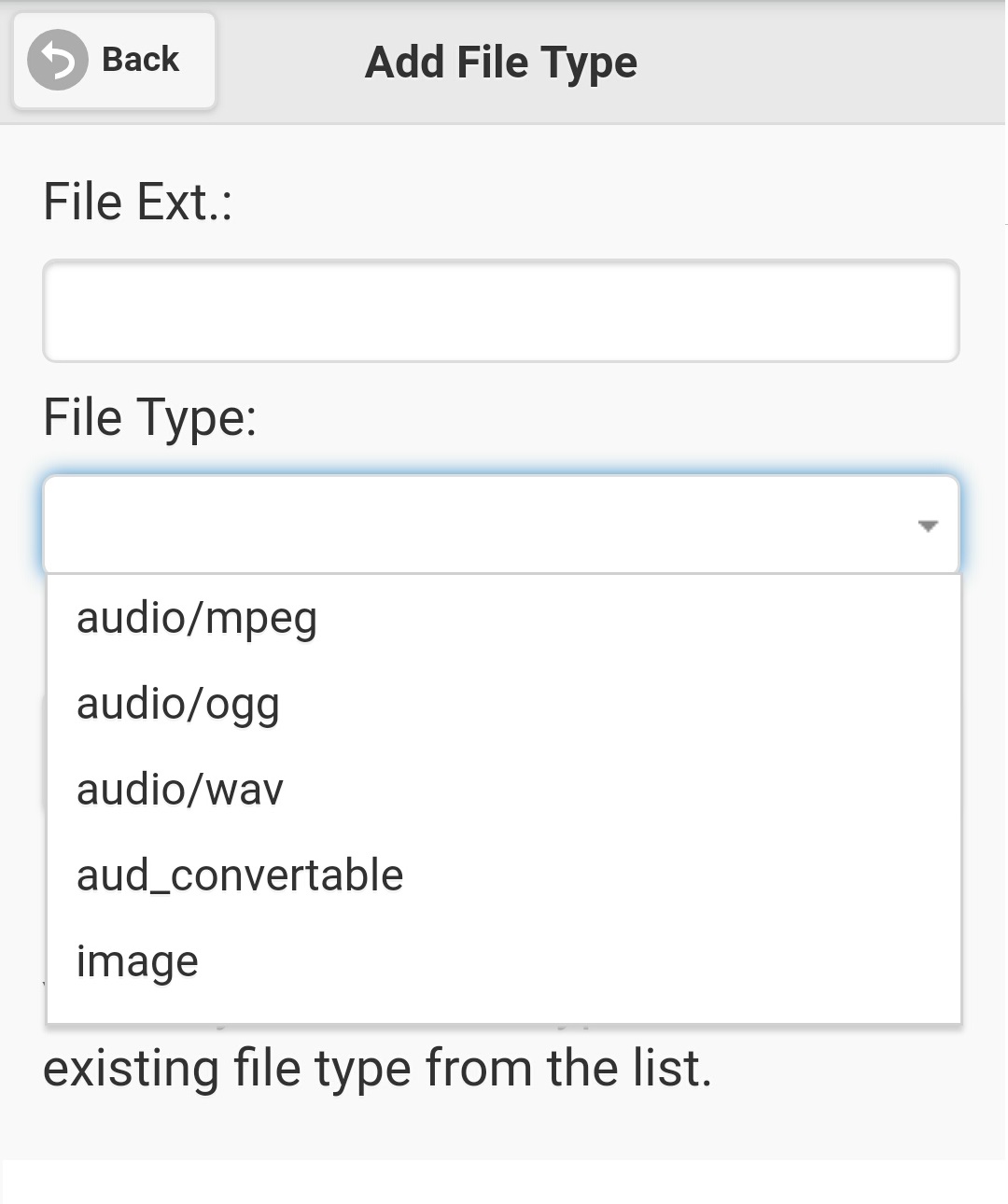
Figure 4.6.4.2
To delete a file type, click cross icon on the 'Delete' column of selected file type in the list (figure 4.6.4.1), a dialog box will show up for you to confirm the file type deletion. Clicking on 'OK' button will remove the selected file type record.
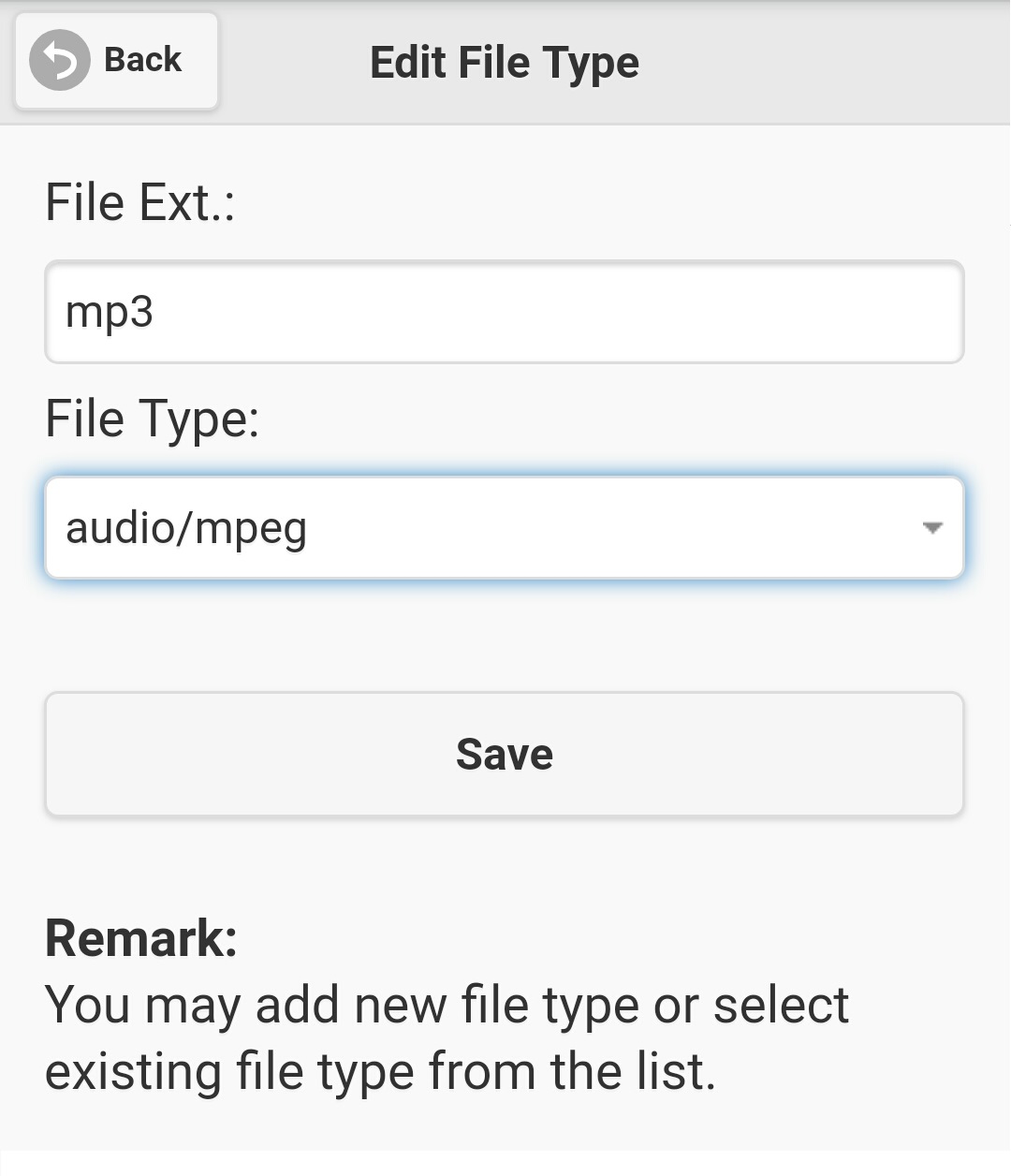
Figure 4.6.4.3
|
|
|