 |
 |
 |
Common users can do every stuffs of messaging, such as create a message group, manage message groups belongs to them, send and receive messages, etc.
Trusted users not only can do all the things common users do, but also they can bring in new SMS users.
System administrators have full power on SMS system. Besides of messaging stuffs and bring in new users, they can perform more administrative tasks such as promoting user, demoting user, lock/unlock user account, modifying system parameters, and even have right to destroy the entire system.
Common user must be brought in by trusted user or system administrator. i.e. Every SMS user must go through a referrer to join in except the built in system administrator 'smsadmin'. Note: Default happy password and unhappy password of 'smsadmin' are 'iamhappy' and 'iamunhappy' respectively. Please change passwords of 'smsadmin' at first login. Otherwise, you will put your SMS server at risk.
There are two ways to bring in new users: (1) let them join in or (2) you create their accounts manually. Method (1) is used for connection mode 0 and connection mode 2, and method (2) is used for connection mode 1 and connection mode 3.
If you select connection mode 0 or connection mode 2, when you type in the URL of your site, screen similar figure 1.3.1 will be seen. In there, you will see a button 'Join Us'. However, this button will be hidden for connection mode 1 and 3, you need to create user manually and pass the user account details to the user via another secure way.
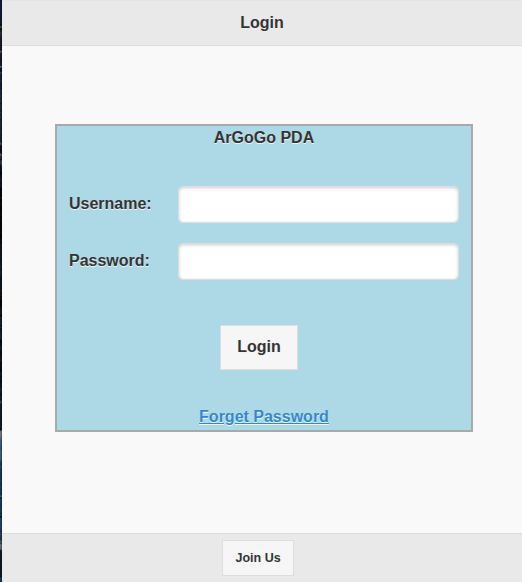
Figure 1.3.1
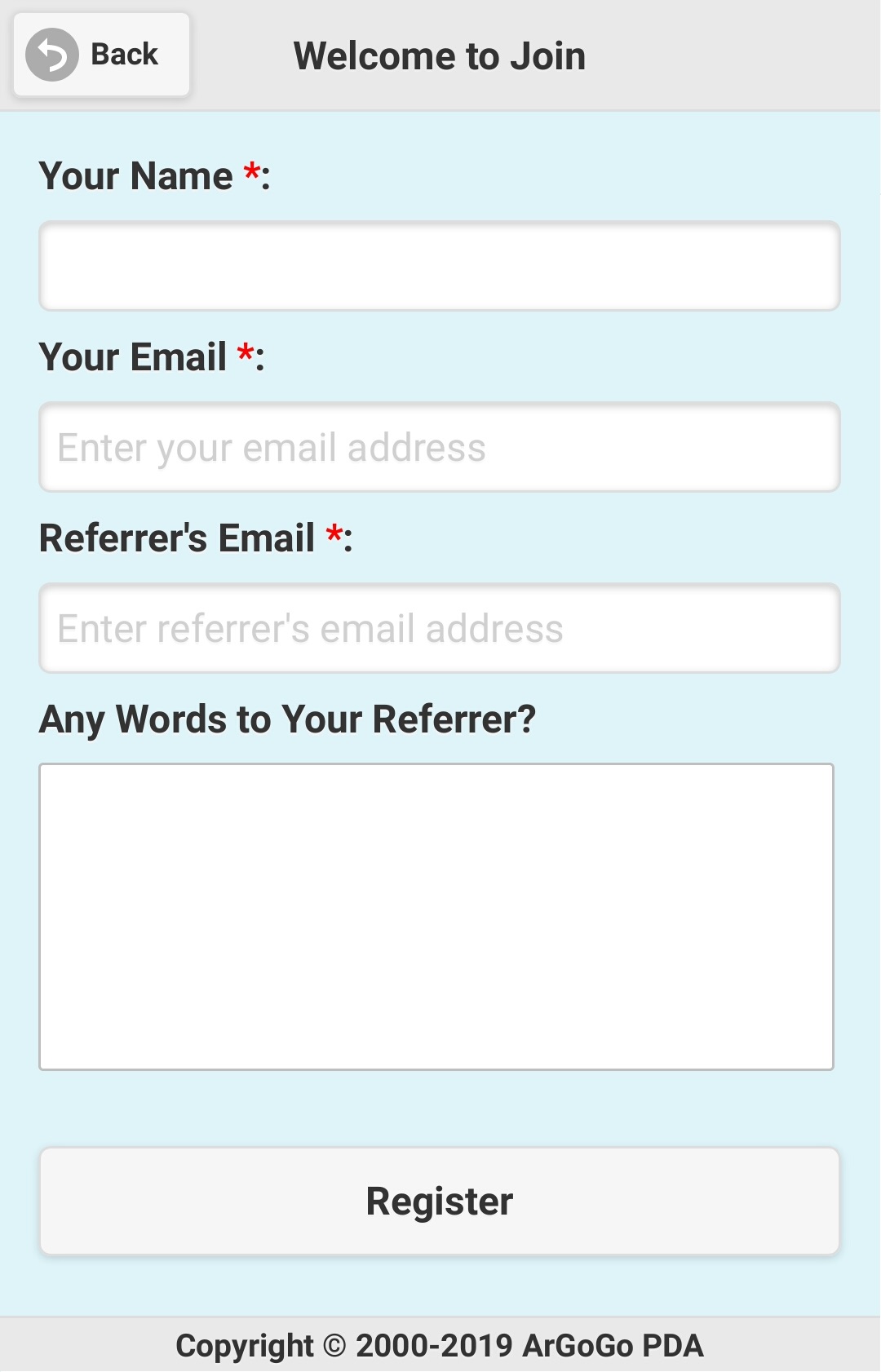
Figure 1.3.2
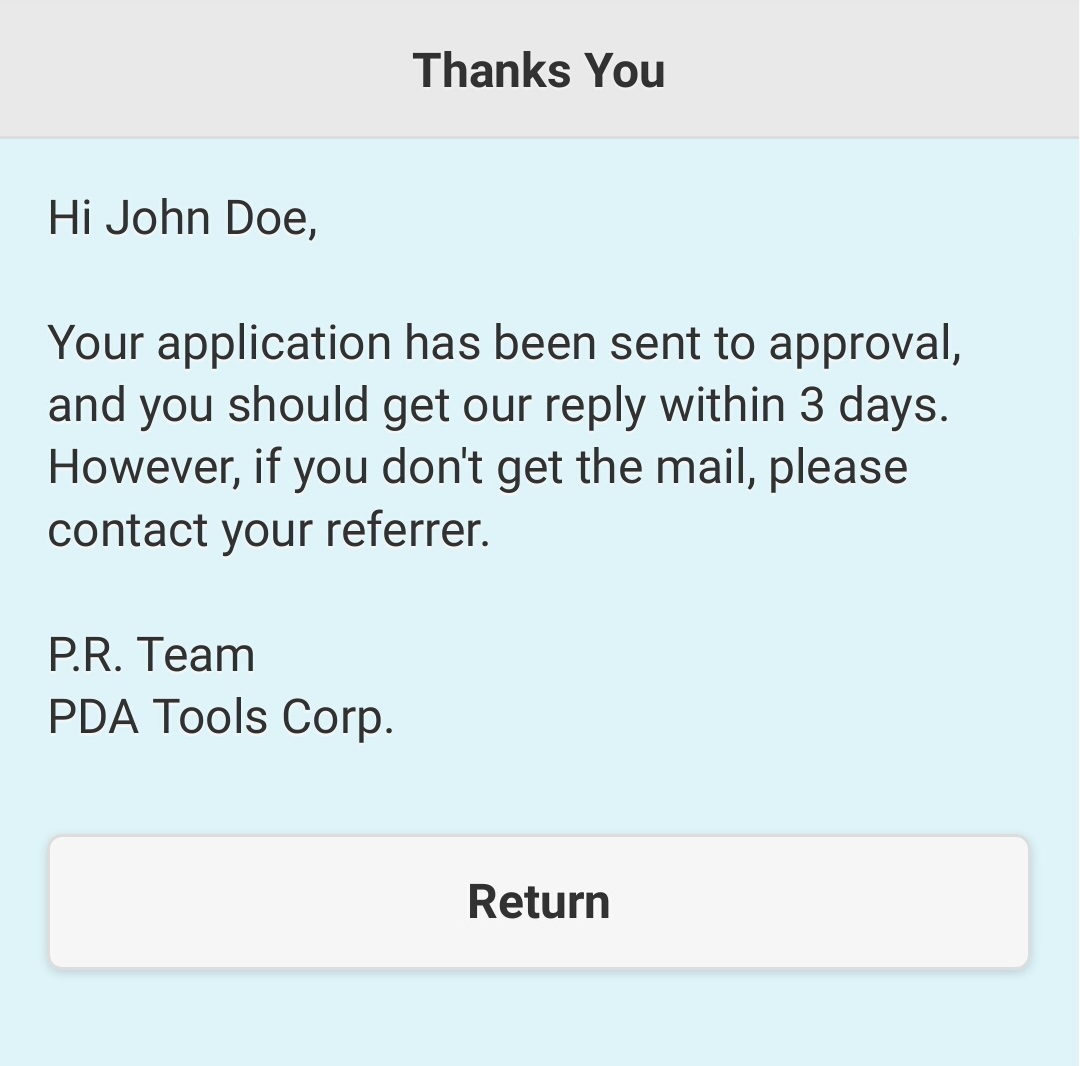
Figure 1.3.3
You need to input your desired username, alias, happy password and unhappy password. You may accept the system suggested username or give your desired username. As remarks shown on figure 1.3.5, happy password is used to login to the system under normal circumstances. However, if you are in danger and you are forced to login to the SMS, you should use unhappy password. For details of SMS login, please refer to section 1.4 How to login.
Note:
Referrer has 3 days to decide whether accept of reject applicant's registration request, and accepted applicant has 4 days to create his/her user account. i.e. the cycle of registration and user account creation processes must be finished within 7 days. After that, pending registration records will be discarded.
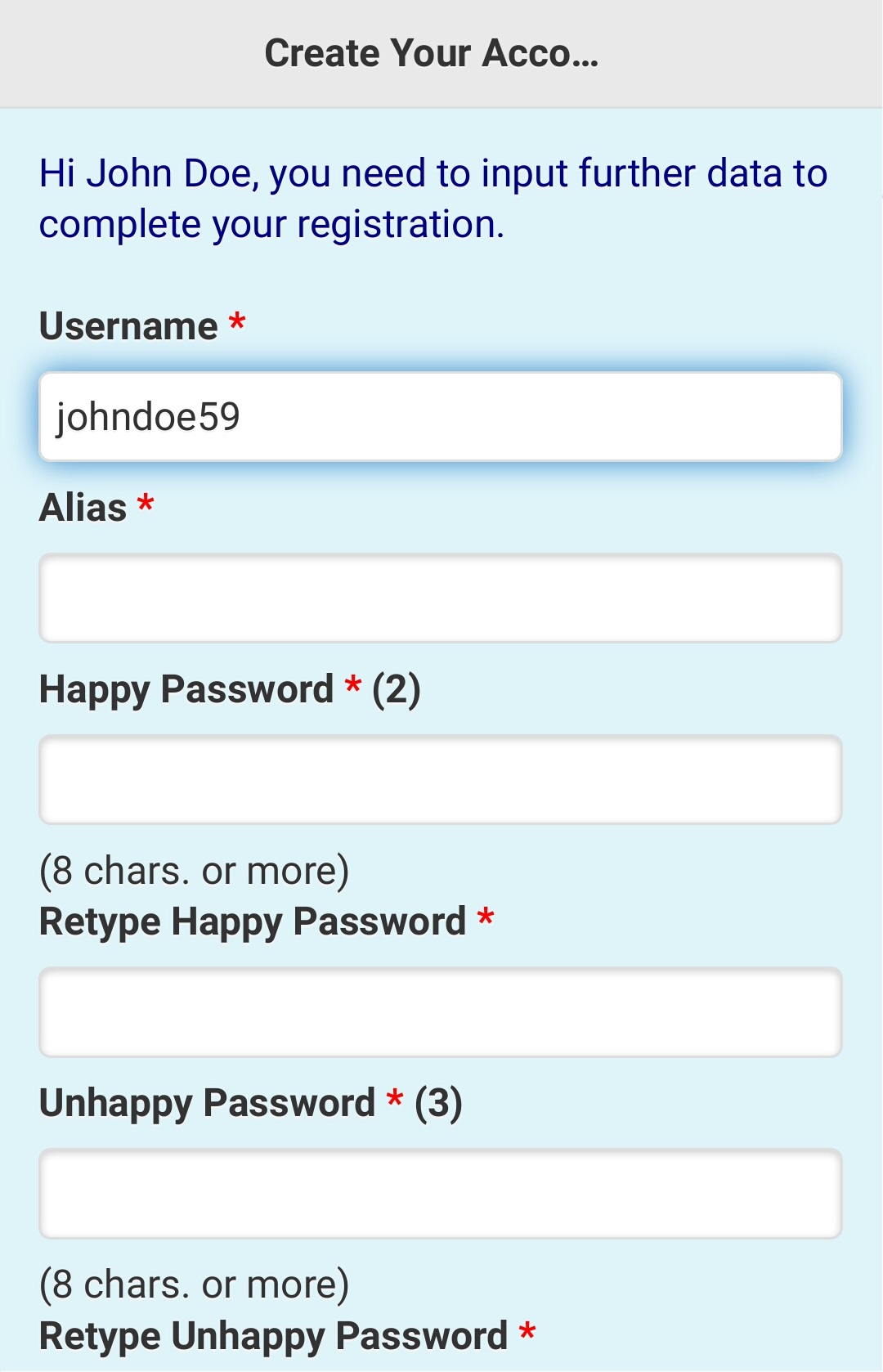
Figure 1.3.4
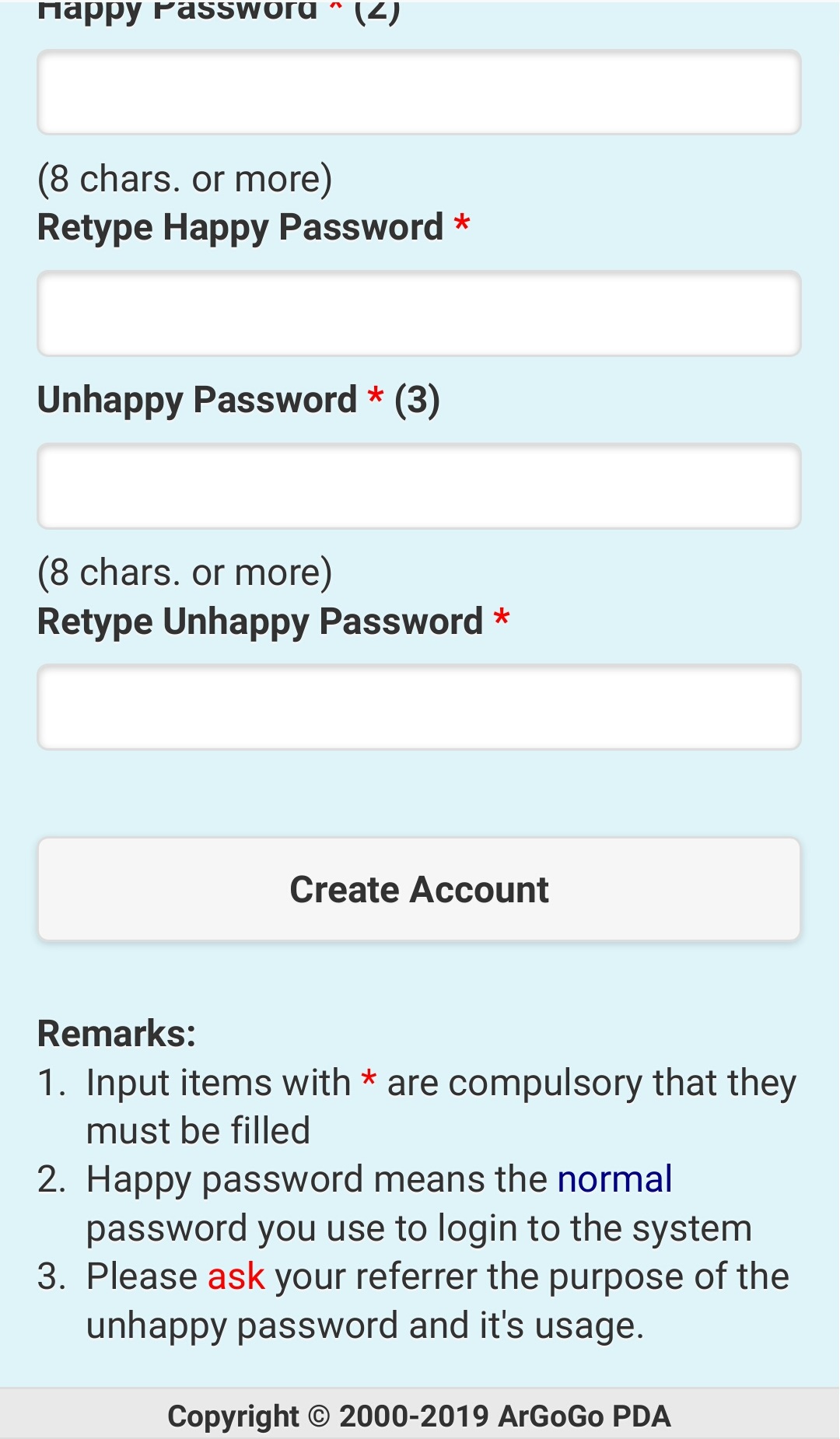
Figure 1.3.5
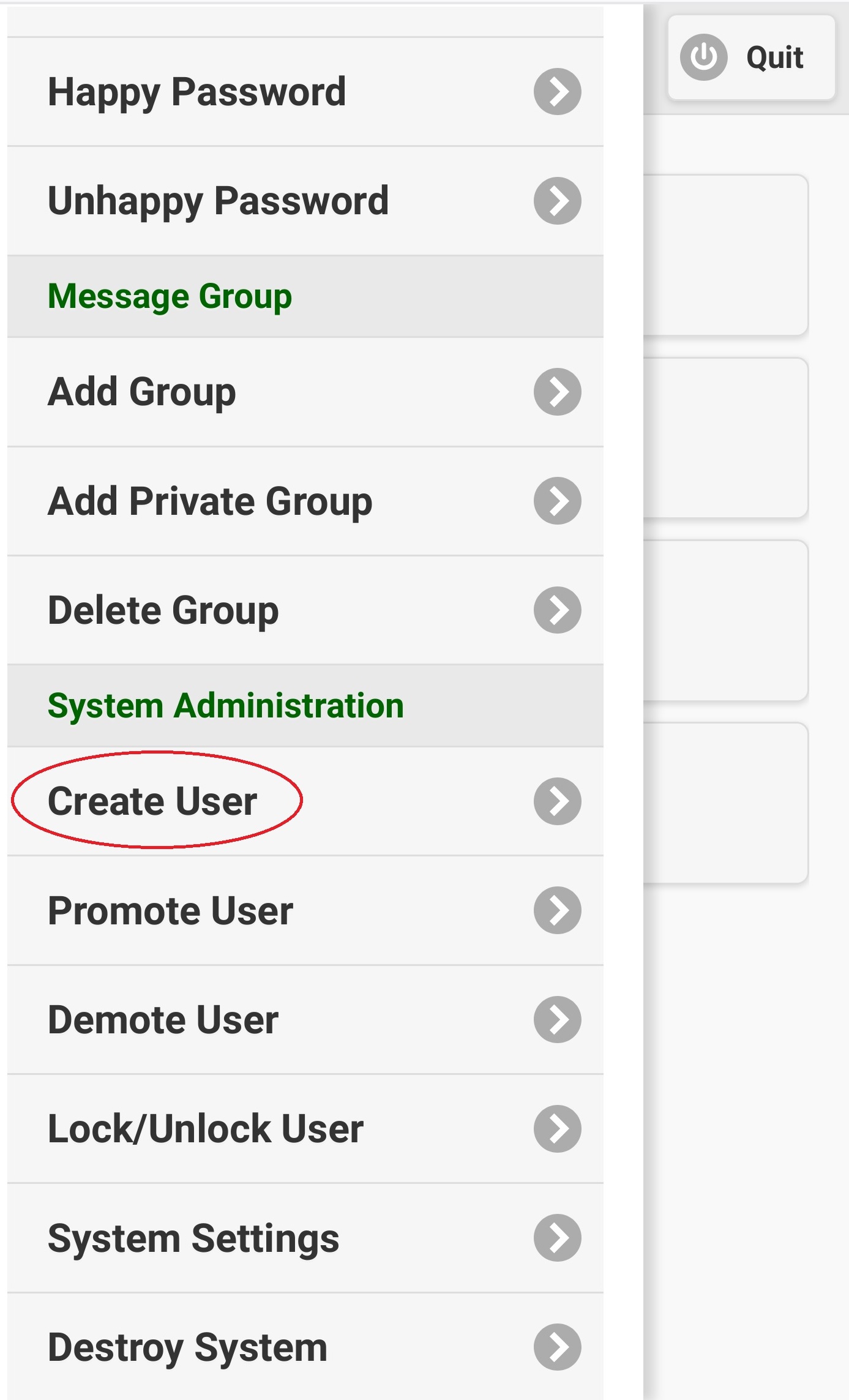
Figure 1.3.6
Note:
Although email address is optional, you should input it if you know it. Since connection mode of your SMS server may be changed to 0 or 3 later, any SMS user without email address in his/her profile cannot login to the SMS system.
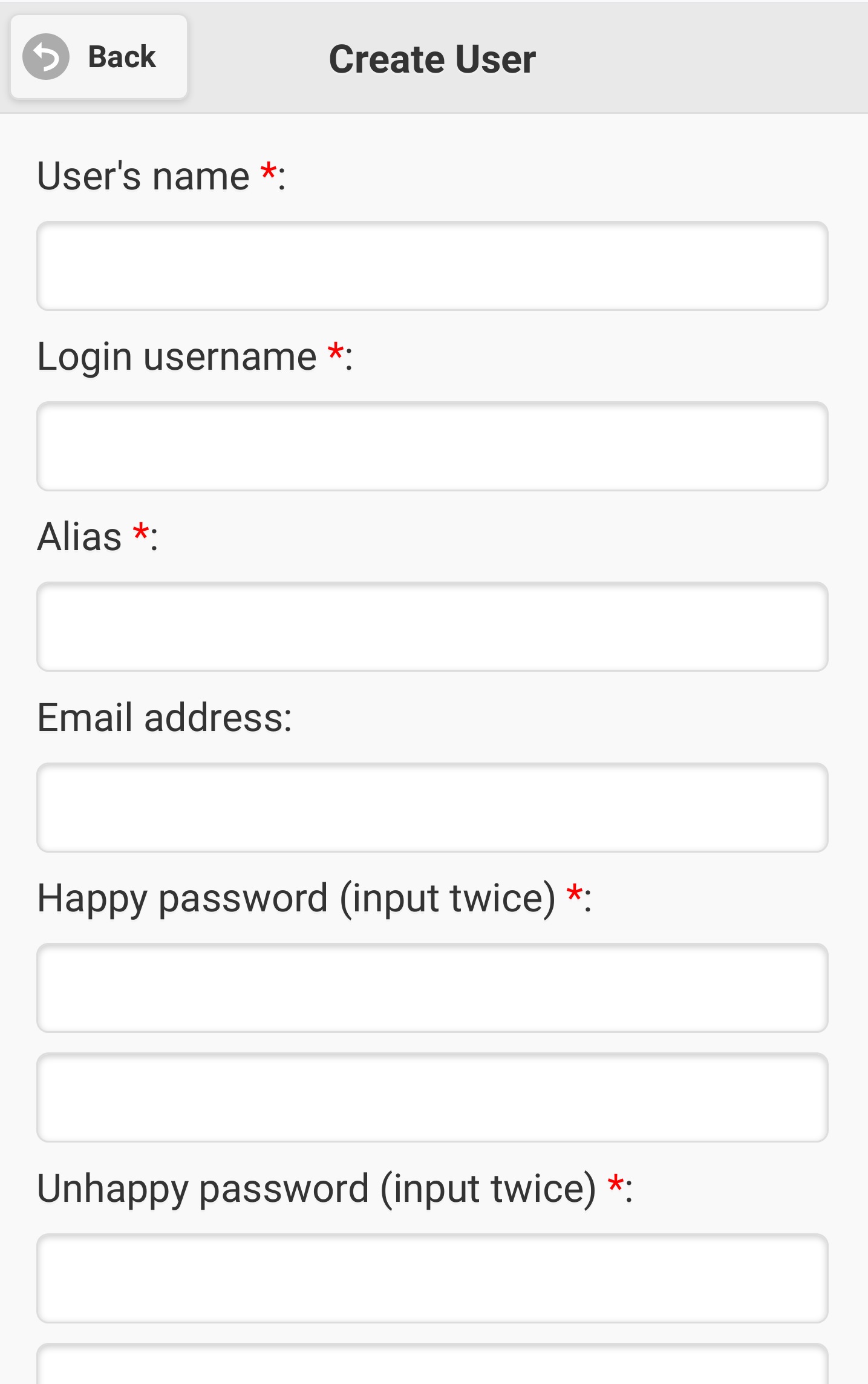
Figure 1.3.7
|
|
|